How to Set Up Your ChatGPT Business Listing
Set up a ChatGPT business listing with real screenshots: eligibility, GoDaddy DNS, profile fields, Persona approval, 28-day insights and agent limits.

A ChatGPT business listing lets you supply business information through Business Hub, verify that you represent the business, and access eligible features after approval. It does not buy a recommendation. It is also separate from the paid ChatGPT Business workspace your team might use.
I recorded the setup for AI Marketing Hub using agricidaniel.com and GoDaddy. We verified the domain, entered the business details and submitted a draft. Identity verification and OpenAI approval were still pending at the end of the recording. The screenshots below show that exact route, with verification values hidden.
The Homies wore suits. I got the DNS tab.
Recorded 12 November 2026. Official documentation rechecked 13 November 2026. Recorded account state and current documented rules are identified separately throughout.
First, which ChatGPT business product do you need?
| Product | What it is for |
|---|---|
| Business listing / Business Hub | Manage customer-facing information about your business, complete verification and view available business insights. This is the setup in this guide. |
| ChatGPT Business workspace | A paid team workspace for employees using ChatGPT, with shared context, seats and administrative controls. It is a separate product. |
| Business Agent | An optional customer conversation about an eligible business's products and policies. It needs its own review and Publish action. |
OpenAI describes the listing on Businesses in ChatGPT and the team product on ChatGPT Business. Claiming, advertising and publishing an agent are separate actions. The setup guide says you do not need an Ads account or Enterprise agreement to claim an eligible business.
Check your route before you prepare the profile
| Your situation | Current route or requirement |
|---|---|
| Online business | Search for an existing match. Eligible businesses may see an option to add one. Availability depends on location, business type and supported verification. |
| Local store or restaurant | Currently, claim an existing U.S. listing. The online-business Add route in our video is not a general way to create a new local listing. |
| You also want an agent | Separate eligibility: U.S. ecommerce or online-service business, a website, approved verification and a supported industry. A manageable profile does not automatically mean agent access. |
These follow the current documented routes. Options can differ across accounts. You must own the business or be authorized to represent it.
For agencies: decide who owns the profile, edits the information, manages DNS and completes identity verification. The claiming admin can grant access through Business Hub using each person's own account; workspace membership can affect invitations. Do not pass around a personal claim invitation. A parent brand's claim also does not claim every location.
Watch the actual setup, then use the screenshots
Video: ChatGPT has Business Listings now... Here's how it works. The four-minute edit includes the browser steps and GoDaddy. A GoDaddy form retake improves readability; it is not a second record. The Homies use synthetic voices. Watch on YouTube if the player is unavailable.
1. Find the business and confirm the account
Sign in, open Business Hub and search by business name. Choose the correct existing listing when there is one. If your eligible online business is missing and an add option appears, follow it.
Our route was labelled Through a website. We entered agricidaniel.com. Before continuing, check that the signed-in account is the one intended to manage the business.
Use the verification methods offered to your business. OpenAI documents phone, business email, website domain and Shopify. We used the domain route, so this guide follows DNS. Shopify is not required. A locked listing has a support path; an already-claimed listing has an ownership-dispute path. Neither calls for creating a duplicate.
2. Copy the TXT challenge into GoDaddy
Keep ChatGPT's verification screen open. You need the type, host/name and value shown there. Our public screenshots hide the value because readers need their own challenge, not ours.
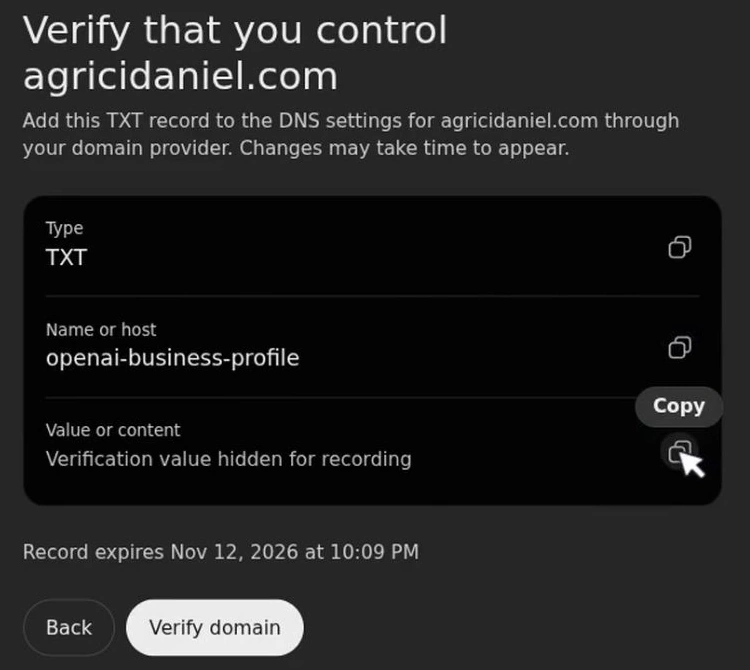
- In GoDaddy, open the domain and its DNS page.
- Select Add New Record and choose TXT.
- Copy the host into Name. Our recorded host was
openai-business-profile. Use the host currently supplied to your account. - Paste your verification value into Value. Review TTL, save, and complete any GoDaddy security check privately.
- Return to ChatGPT, select Verify domain, and follow the remaining prompts.
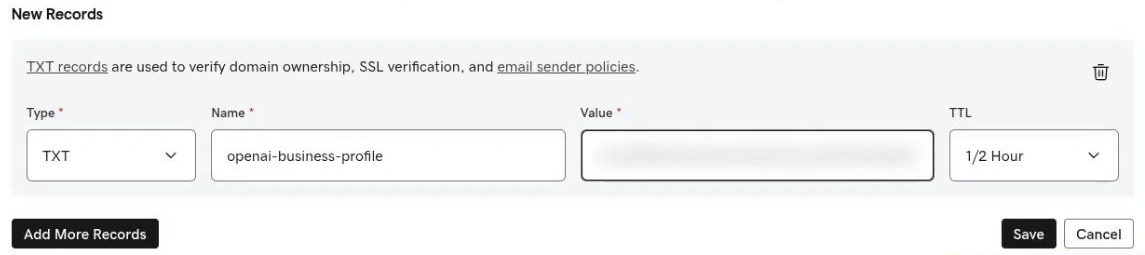
GoDaddy's TXT instructions say Name takes the host prefix without the domain. Use @ only if the instructions require the root domain. Most updates take effect within an hour; propagation can take up to 48 hours. That timing describes DNS, not OpenAI's approval review.
If the check fails, compare the saved type, host and value with ChatGPT's current screen, confirm you edited the provider actually serving the domain's DNS, and allow propagation time. Our first check returned a temporary error and a retry passed. Do not remove unrelated mail records or keep changing the token to force a result.
3. Fill the business details with facts customers can use
After the domain check, our account opened the profile form. Here is what we entered and how to adapt each field. Use values that fit your business.
| Field | Our example and your decision |
|---|---|
| Business name | AI Marketing Hub. Use the customer-facing name of the business you are authorized to manage. |
| Website | agricidaniel.com. Use the correct business domain and be ready to verify control. |
| Category | AI company. Choose the closest accurate category actually offered in your account. |
| Description | Education, tools, community and separate Pro membership. Explain what customers get and distinguish free from paid offers. |
| Phone and email | Left blank. They were optional in our route. If you supply contact details, use working details you can verify. |
| Delivery and returns | No standard product delivery or returns for this example. Select the policy that matches your offer. A membership still needs clear refund and cancellation terms. |
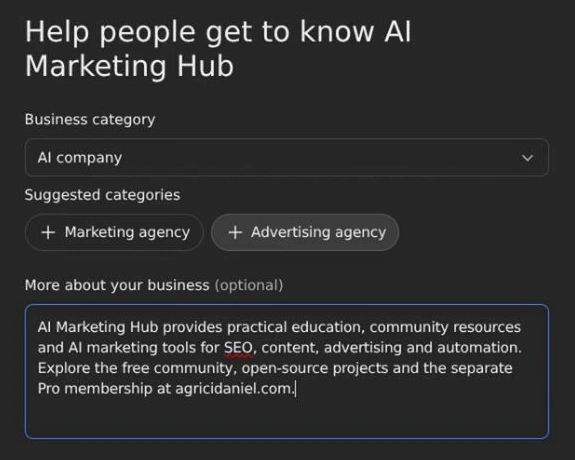
Our completed description was:
AI Marketing Hub provides practical education, community resources and AI marketing tools for SEO, content, advertising and automation. Explore the free community, open-source projects and the separate Pro membership at agricidaniel.com.
The useful structure is what you provide, who it helps, and where the offer lives. Name real services and relevant conditions. Skip claims such as “guaranteed recommendations” or invented credentials. This field is business information, not a prompt telling ChatGPT to rank you first.
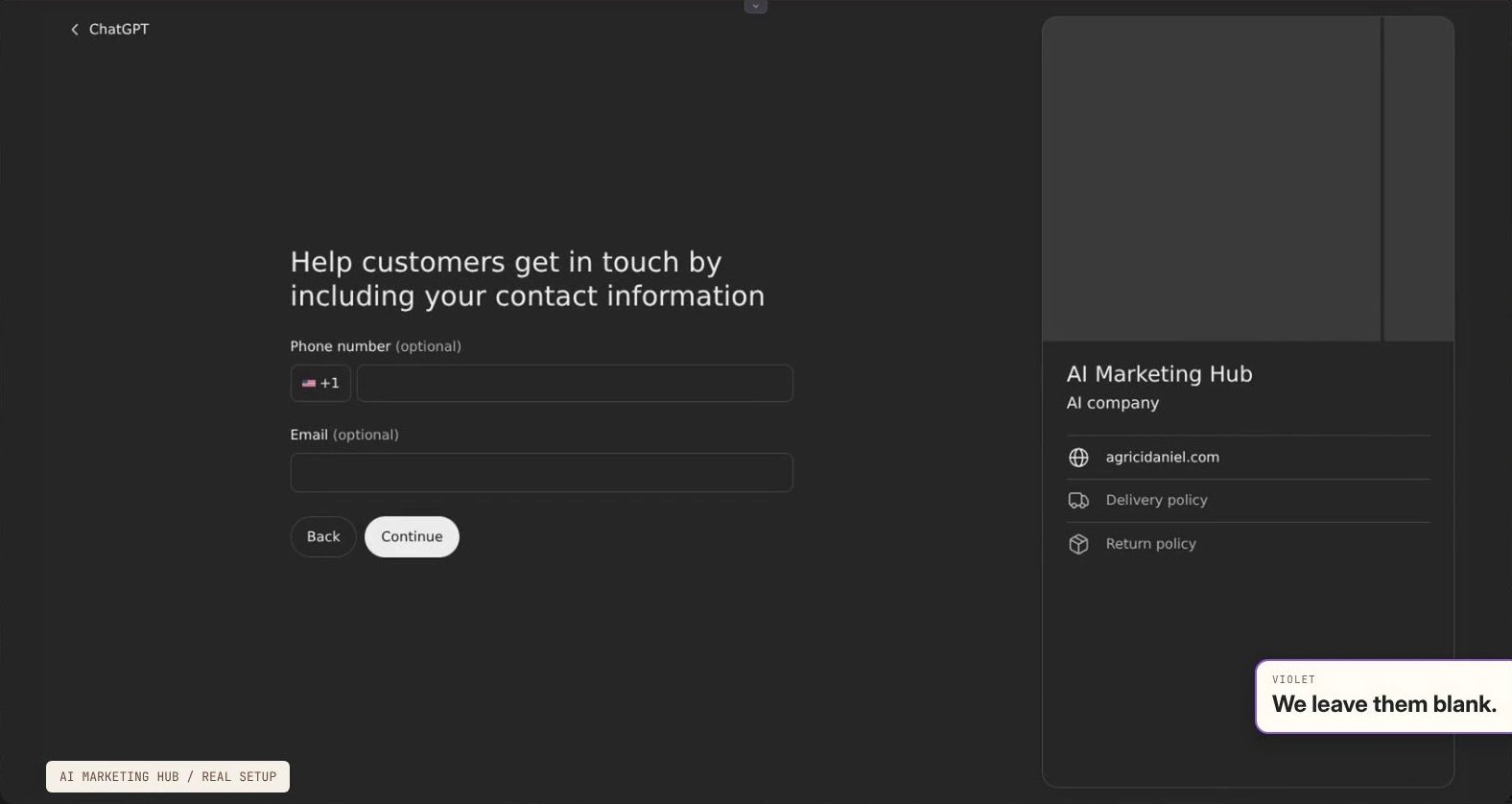
We left optional contact fields empty rather than submitting a demo email. Our policy choices fit a non-physical-product example. They do not erase membership refund obligations or replace the website's terms. Before submitting, compare the profile with the actual offer page and policies.
4. Submit, then read the status instead of assuming you are live
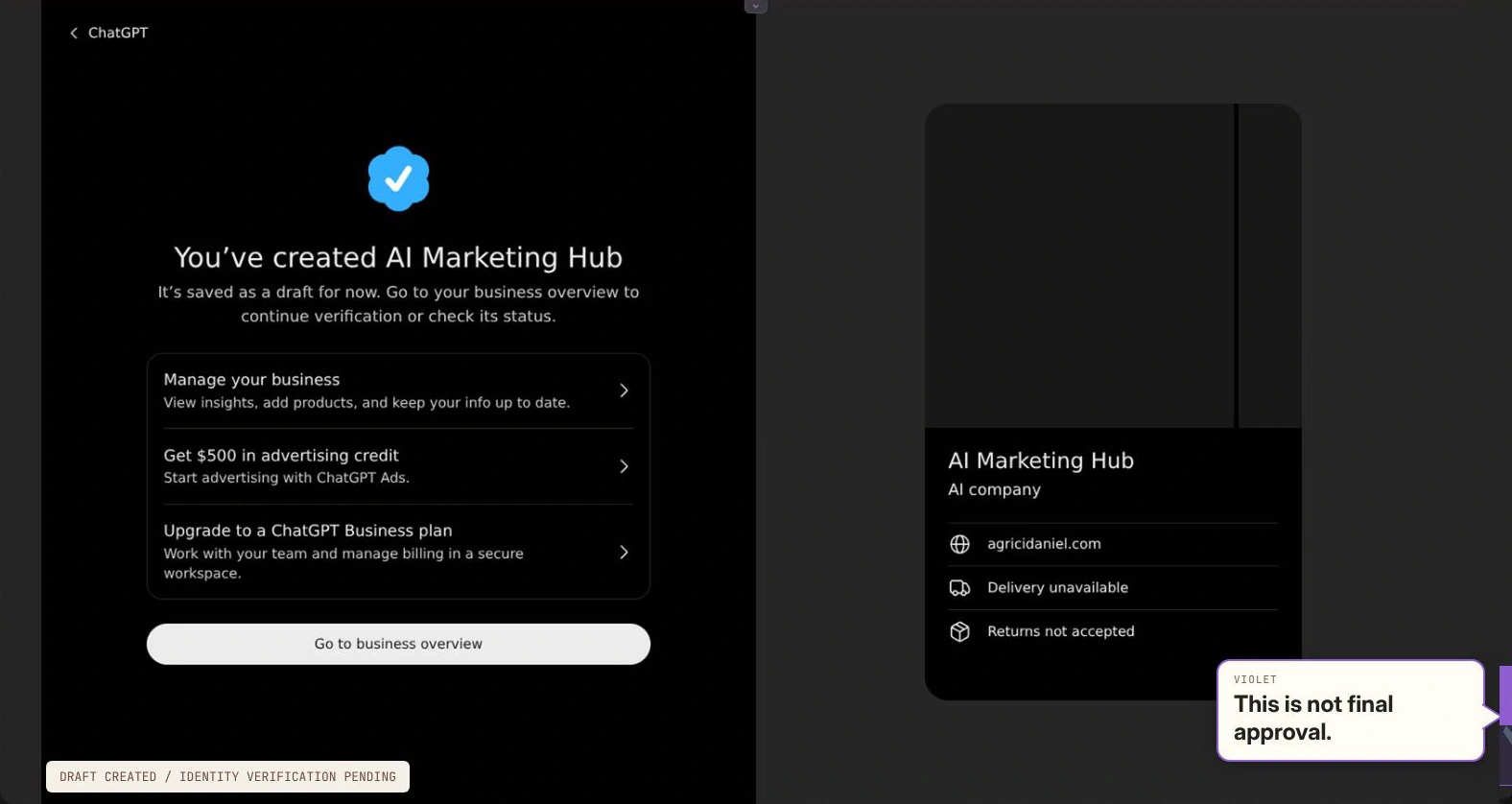
At 03:03, we review the details. After submission, ChatGPT saves a draft. The overview and agent area still ask for identity verification. That is the outcome of the 12 November recording, not a claim about the account's status today.
| State | What it establishes |
|---|---|
| Domain verified | The TXT check accepted control of the domain. It does not complete all business or identity review. |
| Claim approved | OpenAI has approved the claim. Persona approval is still needed for features that require it. |
| Draft saved | Profile details exist. Our recording stopped before approved identity verification; a draft is not proof of a live profile. |
| Persona approved | The detailed guide ties the blue badge and publishing edits, feeds, insights and eligible agents to approved identity verification. |
| Agent published | The eligible agent has been reviewed and explicitly published. Customers can then chat with that agent. |
One important publication detail: if Persona is used to create a new profile, OpenAI approval automatically publishes that profile. There is no separate profile Publish step in that flow. Only unpublished draft profiles can be deleted, so review the details before continuing. The agent still has a separate Publish action. These states are not one universal sequence for every route. Follow the current claim and Persona instructions.
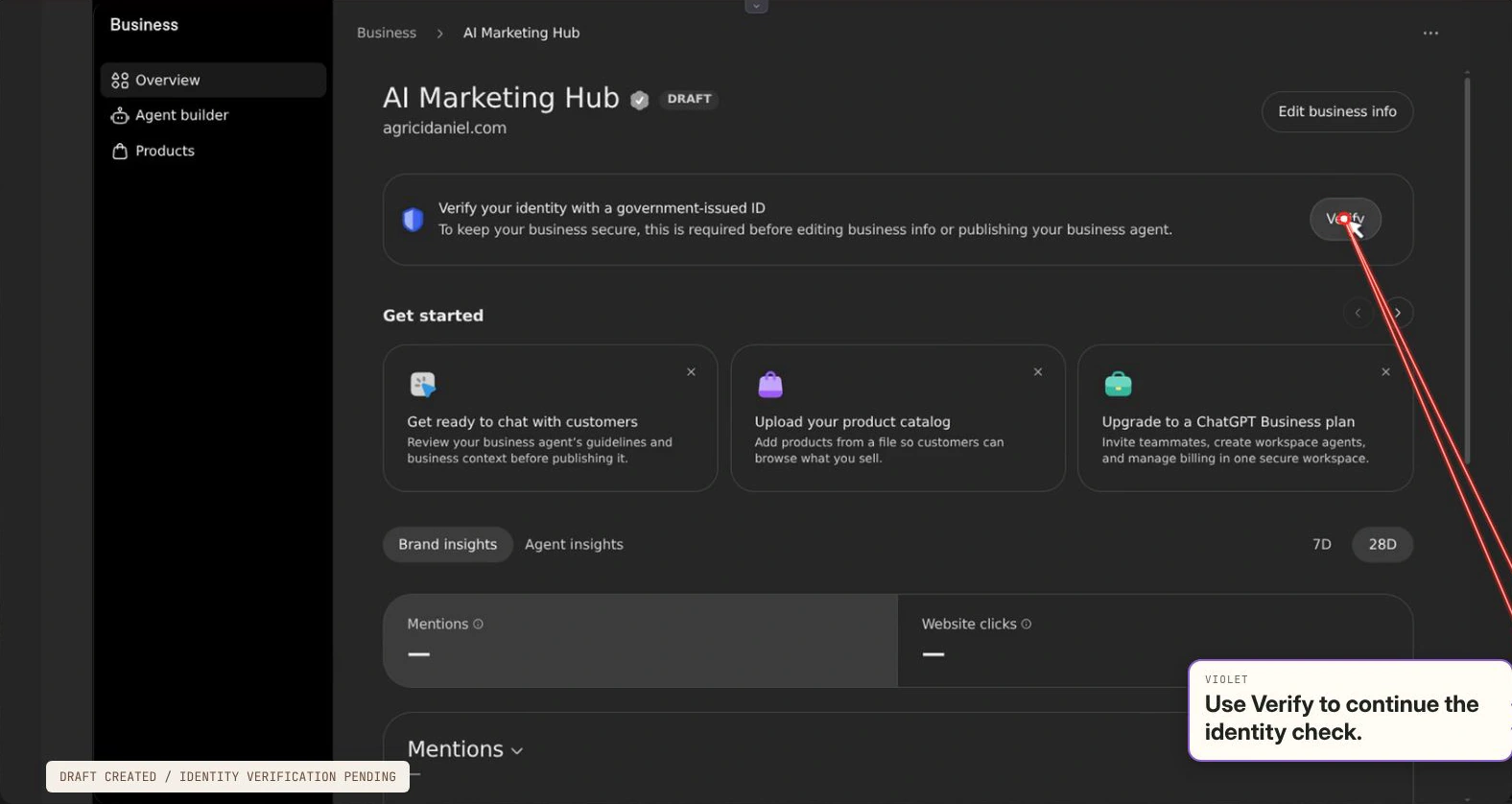
Complete ID and authorization checks privately. Submitting documents is not approval. OpenAI says review time varies and sends a decision or request for more information by email. If a check fails or expires, follow that email and the retry option offered; do not assume DNS is the cause.
5. Read Business Hub insights without inventing results
After claim and Persona approval, the documented Insights view reports aggregate activity for the past 28 days. Our recorded overview showed unavailable data. We did not obtain a before-and-after visibility result.
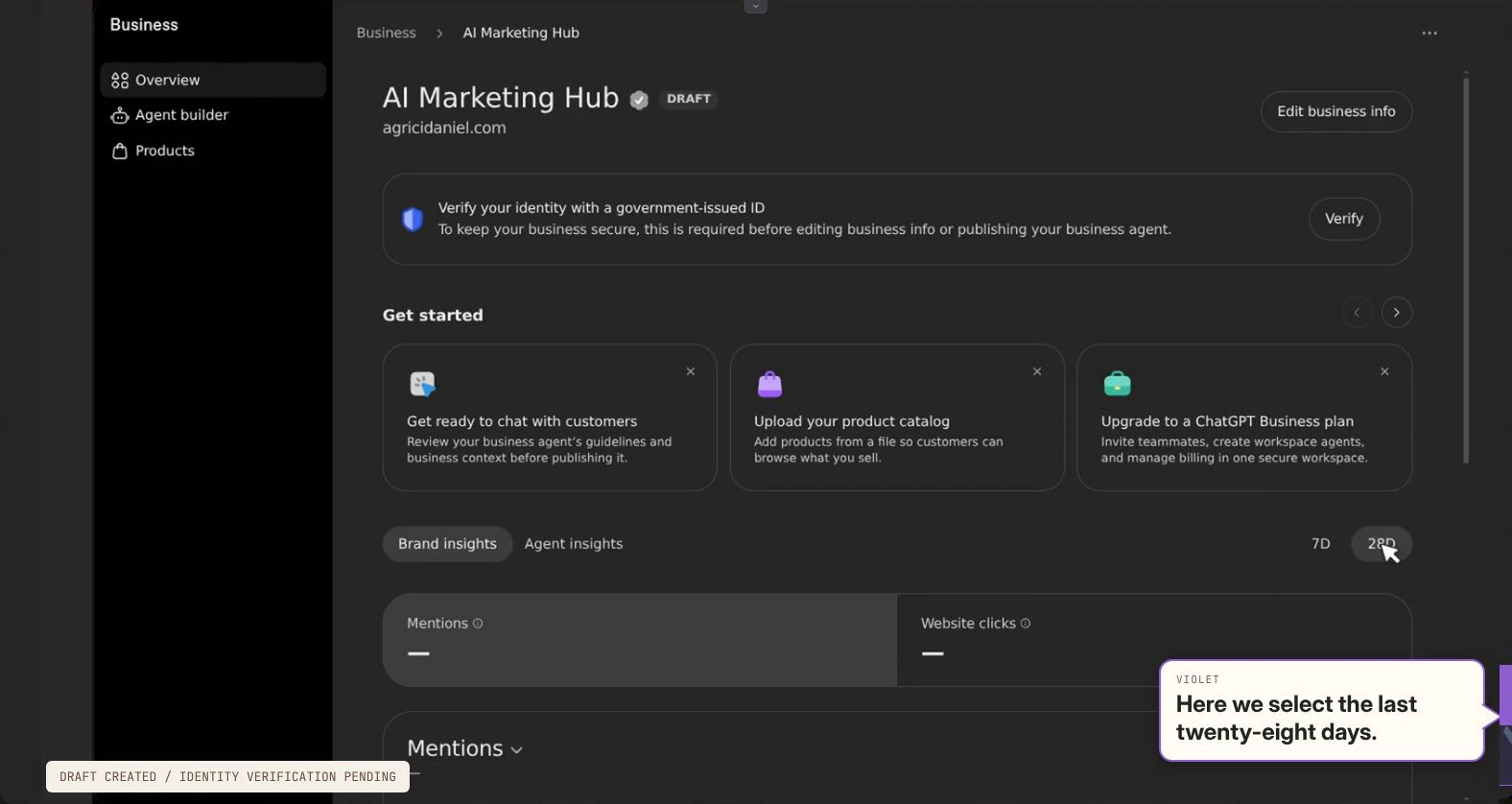
| Metric | How to interpret it |
|---|---|
| Mentions: online business | A reference to the business's website counts. The brand name appearing on its own does not. |
| Mentions: local business | A result for that location counts, even when the person does not open it or visit the website. |
| Website clicks | Clicks through to the business website. This is not a count of purchases or qualified leads. |
| Discovery topics | Grouped themes in answers that mentioned or cited the business. They are not individual prompts or a direct measure of buying intent. |
| Blank or unavailable | Activity may be below a reporting threshold, still collecting, or unavailable. Do not convert a blank into zero. |
The insights documentation does not publish a numeric reporting threshold. Counts can be incomplete, and businesses do not receive individual prompts or consumer chats, including agent conversations. If a metric stays blank, contact support.
For a marketing report: record the date window and the displayed metric name. Keep mentions, website clicks and conversions in separate columns. Avoid comparing online and local mention counts as if they used the same definition.
6. Add a feed or agent only when it fits the business
These are later options from current documentation. We opened the relevant areas in the video but did not upload a catalog or publish an agent.
Product feeds
For a business selling eligible products, a feed supplies product details, prices and availability. OpenAI documents CSV uploads and Shopify; a hosted URL should point to the feed file. Check the current feed specification and commerce requirements linked from the feed setup instructions. Connecting it does not publish an agent or guarantee recommendations. Our membership example did not need an invented product catalog.
What the agent can and cannot do
The current agent can explain products and policies and send a customer to the business website. It cannot complete a purchase, make a booking or check an order. A separate business plugin does not lend its data or capabilities to the agent's chat. Those limits are stated in the agent FAQ.
After approval, open the draft agent or create one if the option is available. Review the sources, preview real customer questions, correct the information or instructions, and then select Publish. Under the Business Agents Policy, the agent must represent the business honestly, clearly identify itself as AI representing the business and avoid fabricated offers, prices, credentials, reviews or guarantees.
For a community business like ours, these are useful preview questions, not claimed answers from a tested agent:
- “What is free, and what needs a Pro membership?”
- “Where do I find the current price and refund conditions?”
- “Can you cancel my membership here?” The response should respect its actual capabilities and direct the customer appropriately.
- “Do you guarantee traffic or recommendations?” Check that it does not invent a promise.
The practical handoff checklist
- Profile: correct business, account, domain, category and description; policies match the website.
- Verification: distinguish domain success, claim review and Persona approval. Keep identity material private.
- After approval: review available details, logo and cover. Submitted edits may take time to appear because OpenAI reviews changes and may also use other sources.
- Optional features: add a real catalog only when relevant; test and publish an eligible agent separately.
- Measurement: log the insight period and metric definitions. An unavailable panel is not evidence of zero activity.
- Agency access: use explicit account permissions, not shared credentials or forwarded personal claim links.
Frequently asked questions
Do I need Shopify to claim my business in ChatGPT?
No. Our walkthrough uses agricidaniel.com and a DNS TXT record in GoDaddy. Shopify is another connection option.
Are phone and email required for the business profile?
They were optional in the website-based setup we recorded, and we left them blank. Follow the fields and verification options offered in your account.
Is domain verification the same as business approval?
No. Our domain check succeeded, but the profile was still a draft and private identity verification remained unfinished when we recorded the tutorial.
Will a ChatGPT business listing guarantee recommendations?
No. Claiming lets you manage the information you provide. ChatGPT still makes independent recommendations, and claiming does not guarantee placement or sales.
Can an agency set this up for a client?
Only with authorization to represent that business. Agree who owns the account, who handles DNS and who will complete identity verification before starting.
Keep the listing and website telling the same story
The useful outcome is a profile that accurately explains the business and an owner who knows which step is still pending. Claiming does not guarantee higher placement, recommendations or sales. I have not measured a visibility change from this setup.
For the separate SEO tool workflow, see my ChatGPT SEO plugin guide. For repeatable marketing workflows, the Claude Code for marketing guide is a useful next read. Want help building your own? Join AI Marketing Hub Pro, my separate paid community.
Written by Daniel Agrici from our recorded setup and the linked primary sources, with AI assistance. This is an independent tutorial, not an OpenAI or GoDaddy endorsement.
Share this article
Keep reading.
All 45 posts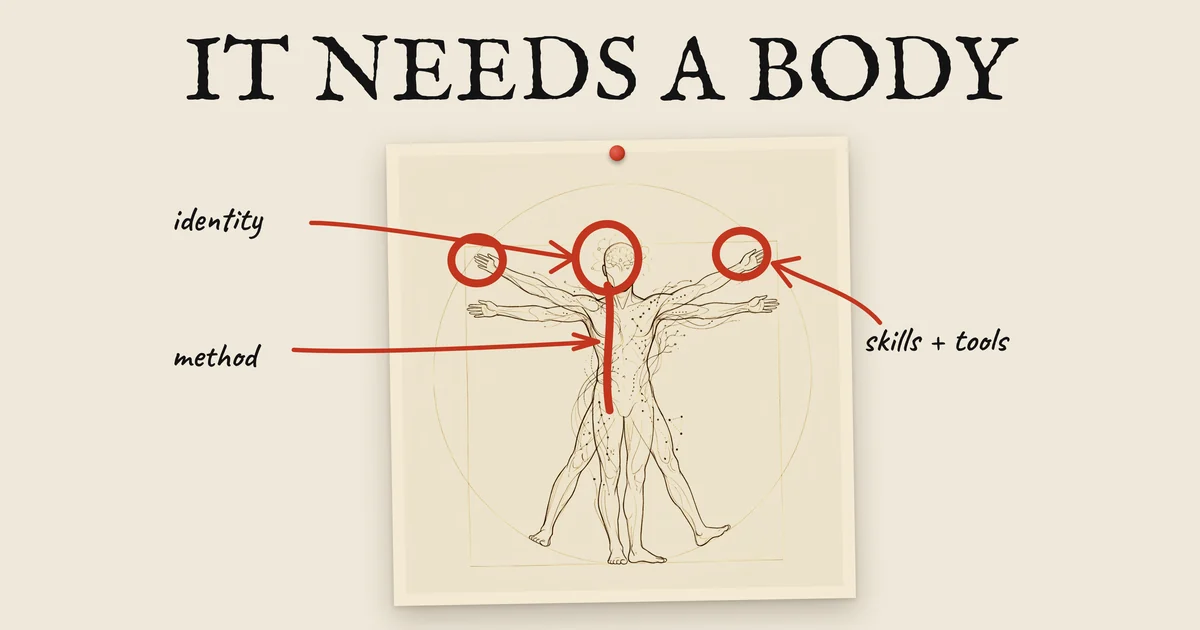
How to Design an AI Agent Like a Living Thing
An AI agent built as one long prompt gets worse with every rule. Here is a design in nine parts, like a body, tested against 85 sources, with the free 42-page guide.
12 min read
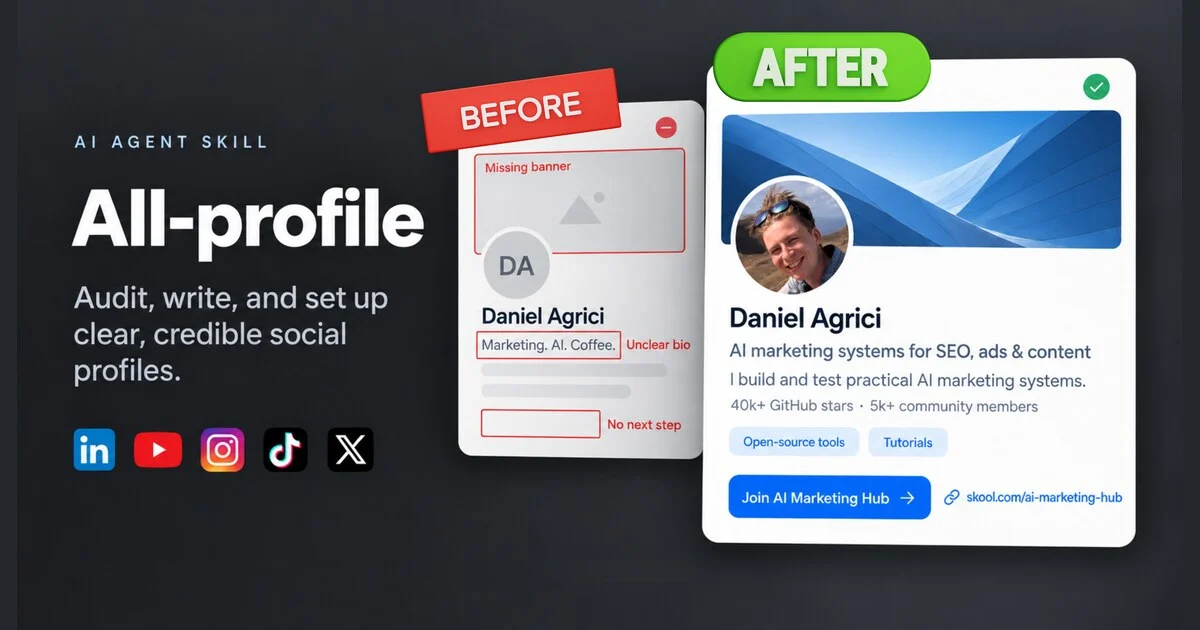
How I improved my social media profiles with an AI agent
A practical guide to using All-profile to audit, write, approve, and verify clearer profiles across LinkedIn, YouTube, Instagram, TikTok, and X.
10 min read

Best Claude Code Skills in 2026 - The Complete Guide
The definitive guide to Claude Code skills in 2026. What they are, how they work, the top skills ranked by GitHub stars, and how to build your own.
11 min read